
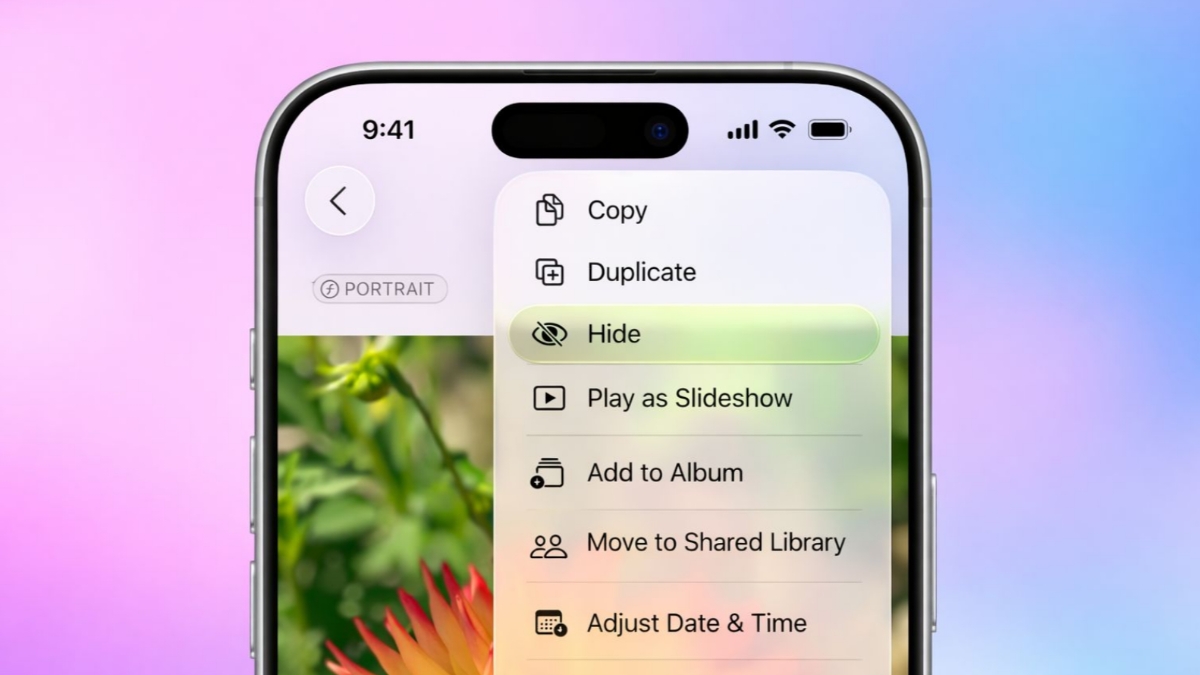

Hiding Photos On iPhone helps protect personal pictures as users keep private images on devices. Apple includes a built-in hiding feature.
This feature keeps photos away from galleries. It also adds security through authentication methods.
Hide Photos On iPhone: Why Users Need This Feature
Modern iPhones offer many useful privacy tools. Some features remain unnoticed by many users. The photo hiding option is one example.
People store many personal memories on phones. Not every image should remain publicly visible. Some pictures require extra privacy protection.
There are many reasons for hiding photos.
- Protect personal and sensitive images.
- Keep private moments away from others.
- Prevent accidental photo sharing.
- Hide surprise gift photographs safely.
- Store selfies in a private location.
- Avoid unwanted appearances in photo widgets.
- Reduce risks during phone loss situations.
Many users keep important personal photographs. These images may contain private information. Others may simply hold personal memories.
Some people take intimate photographs privately. They may not want accidental exposure. Hidden albums provide extra protection.
Many users lose phones occasionally. A misplaced phone creates privacy concerns. Hidden photos become harder to access.
Friends and family often view galleries together. During browsing, private pictures may appear. Hidden albums help prevent awkward situations.
Special occasions create another common reason. Birthday gifts often require secrecy beforehand. Holiday presents also need protection sometimes.
Photographs of surprise presents can reveal plans. Hidden albums help keep surprises safe. This feature works without deleting images.
Selfie collections also remain private easily. Some users prefer personal photo storage. Hidden albums provide a convenient solution.
How To Hide Pictures
Apple designed this feature for simplicity. Hiding pictures requires only a few steps.
Before starting, update your iPhone software. Newer iOS versions improve performance and security.
Hide A Single Photo
Follow these simple instructions carefully.
- Open the Photos application.
- Locate the picture you want hidden.
- Press and hold the image.
- Wait for the menu options.
- Select the Hide option.
- Confirm by tapping Hide Photo.
- The picture disappears from galleries.
The image remains stored on the iPhone. It simply moves to another location.
Hide Multiple Photos Together
Many users hide several images simultaneously. Apple supports batch photo hiding easily.
Follow these steps carefully.
- Open the Photos application.
- Tap Select at upper right.
- Choose all desired images.
- Confirm blue checkmarks appear.
- Tap the three-dot icon.
- Select Hide from menu options.
- Confirm Hide Photos request.
The selected pictures disappear immediately afterward. They remain stored within the Hidden album.
Videos can also be hidden similarly. The process remains exactly the same. Hidden videos move into Hidden album.
What Happens After Hiding Photos
Many users ask this important question. Hidden photos never get permanently removed. Instead, they move into Hidden albums. This special album stores private content.
The photos stay available whenever needed. Users can view them later easily. This method keeps images on devices. It prevents accidental discovery by others.
Access Hidden Albums Securely
Apple protects Hidden albums using authentication. This security adds another privacy layer.
Where To Find Hidden Photos
Hidden images remain inside the Hidden album. The album exists within the Photos application.
To view hidden pictures:
- Open the Photos application.
- Tap the Albums section.
- Scroll until Hidden appears.
- Open the Hidden album.
- Complete authentication requirements.
- View hidden photos securely.
The album uses a crossed-eye symbol. This icon identifies hidden content quickly.
Hidden Album Security Features
Apple locks Hidden albums automatically. This protection exists on newer iOS versions.
Users must authenticate before viewing content. Authentication methods may include:
- Face ID
- Touch ID
- iPhone passcode
Without authentication, access becomes restricted. This helps protect sensitive photographs.
Face ID offers strong privacy protection. It prevents unauthorized album access. Touch ID provides similar convenience.
Users without biometric options available can. use their device passcode instead.
Why Hidden Albums Improve Privacy
Hidden albums reduce accidental photo exposure. They provide extra security layers.
Someone browsing normal galleries sees nothing. Hidden pictures remain separated completely.
Private content stays organized and protected. This makes photo management easier. The feature works without additional applications. Everything remains inside Apple’s Photos app.
Show, Hide, And Restore Albums
Some users want stronger privacy protection. Apple allows hiding the album itself.
Remove Hidden Album From Photos App
The Hidden album can disappear completely. This prevents others from noticing its existence. Follow these instructions carefully.
- Open Settings application.
- Locate Photos settings section.
- On newer systems, open Apps.
- Select Photos from applications list.
- Find Hidden Album option.
- Turn off the toggle.
The Hidden album immediately disappears afterward. Hidden photos remain stored safely. No images become deleted automatically. Everything stays preserved within storage.
Show Hidden Album Again
Users may restore album visibility later. Follow these steps:
- Open Settings application.
- Access Photos settings section.
- Locate Hidden Album option.
- Turn the toggle on.
The Hidden album appears again instantly. All stored photos remain available.
Activate Face ID Protection
Face ID strengthens privacy significantly. Apple recommends enabling this security feature. To activate Face ID protection:
- Open Settings application.
- Access Photos settings menu.
- Locate Face ID option.
- Enable the toggle setting.
Face ID protects Hidden album access. It also secures Recently Deleted content. This additional protection improves privacy greatly.
How To Unhide A Single Photo
Sometimes users need photos restored. Follow these simple instructions:
- Open Hidden album.
- Find the desired image.
- Press and hold the photo.
- Select Unhide from the menu.
The picture returns to normal galleries.
How To Unhide Multiple Photos
Several photos can be restored together. Follow these steps:
- Open Hidden album.
- Tap the Select button.
- Choose desired photographs.
- Tap the three-dot menu.
- Select Unhide option.
The selected images return immediately. They appear inside regular photo galleries.
Important Things Users Should Remember
The Hide feature improves privacy considerably. However, it remains imperfect protection. Someone understanding these settings completely may. know where hidden photos exist.
Knowledgeable users can locate Hidden albums. They may understand access procedures already. Strong passcodes remain extremely important. Face ID also adds valuable protection.
Even with limitations, the feature helps. Many people never check hidden settings. This means hidden content remains safer. It offers better protection than regular galleries.
Most users find this feature sufficient. It costs nothing and works instantly. The Hide feature combines convenience and privacy. It remains useful for everyday protection.
As We Conclude
Users can hide, secure, and restore Photos On iPhone. Hidden albums protect sensitive content effectively.
Face ID adds stronger security protection. This feature helps keep private memories safer daily.