
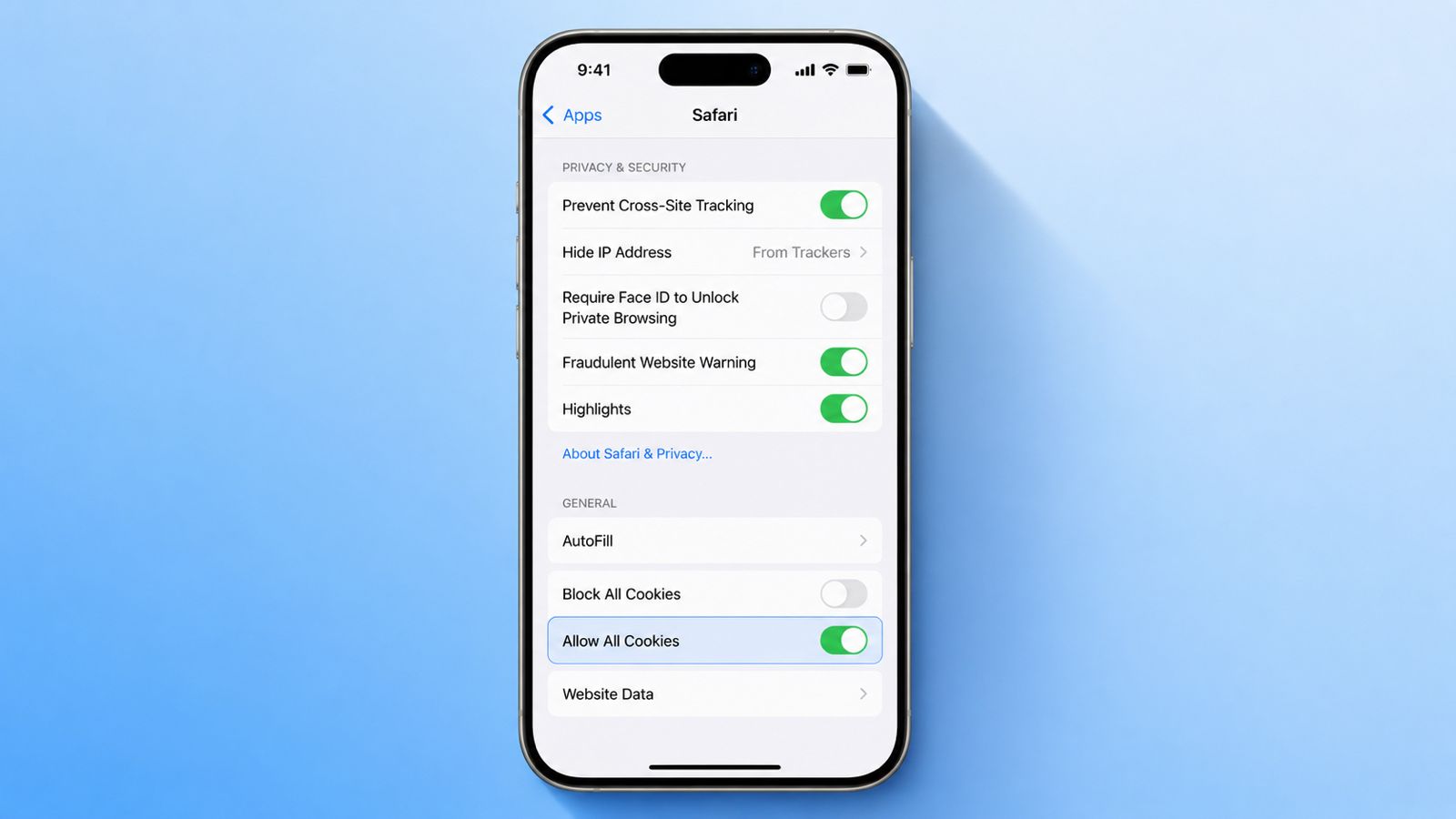

Enable Cookies on iPhone to improve website performance. Cookies help websites remember useful browsing information. They save settings, login details, and preferences.
Many websites work better with cookies enabled. The process is simple across Safari and Chrome.
Enable Cookies on iPhone in Safari
Safari is the default browser on iPhones. Most users access websites through Safari daily. Enabling cookies takes only a few moments.
Steps for iOS 11 and Later
Newer iPhone versions use a simple method. Follow these steps to enable cookies quickly.
- Open Settings on your iPhone.
- Scroll down and select Safari.
- Find the Block All Cookies option.
- Turn the switch to the off position.
Cookies are now enabled in Safari. Websites may request cookie permission when visited. You can choose whether to accept them.
Alternative Safari Settings Method
Some devices display Safari settings differently. Follow these instructions if needed.
- Open Settings on your device.
- Tap Apps from the settings menu.
- Select Safari from the application list.
- Open the Advanced settings section.
- Locate Block All Cookies.
- Leave the option turned off.
Safari will now allow cookies normally.
Enable Cookies on Older iPhone Versions
Older iPhones use slightly different settings. This applies to iOS 7 through iOS 10.
Follow these steps carefully below.
- Open Settings on your iPhone.
- Scroll down and tap Safari.
- Locate and tap Block Cookies.
- Select Allow from Websites I Visit.
This setting enables cookies from websites visited.
Other Cookie Options Available
Older iOS versions offer additional choices.
Allow from Current Website Only
This option accepts first-party cookies only. Cookies come from the current website.
Allow from Websites I Visit
This option allows trusted visited websites. Many users choose this balanced setting.
Always Allow
This option accepts all available cookies. It includes third-party cookies as well.
Choose the setting matching your needs.
On Chrome
Chrome is another popular browser option. Cookies are usually enabled automatically in Chrome. However, settings can still be adjusted manually.
Steps to Enable Cookies in Chrome
Follow these simple instructions below.
- Open the Chrome app.
- Tap the three-dot menu icon.
- Open Settings from the menu.
- Select Privacy and Security.
- Tap Third-Party Cookies settings.
- Choose Allow Third-Party Cookies.
Cookies are now enabled in Chrome.
Other Chrome Cookie Options
Chrome provides additional cookie controls.
Allow Third-Party Cookies
This option fully enables third-party cookies.
Block Third-Party Cookies in Incognito Mode
Cookies remain blocked during private browsing.
Block Third-Party Cookies
This option prevents third-party tracking cookies. To enable cookies completely, select Allow Third-Party Cookies.
Enable Cookies on iPad
The same process works on iPads. Safari settings remain nearly identical. Chrome settings follow similar steps as well.
How to Delete Cookies on iPhone
Sometimes users prefer removing stored cookies. This helps clear browsing information and settings. Deleting cookies does not disable future cookies.
Remove Individual Website Cookies
Follow these steps below.
- Open Settings on your iPhone.
- Scroll down and select Safari.
- Tap Advanced settings.
- Open Website Data.
- Find the desired website.
- Swipe left on stored cookies.
- Tap Delete to remove them.
Only selected website data gets removed.
Remove All Website Cookies
You can also clear everything together.
- Open Website Data settings.
- Tap Remove All Website Data.
- Confirm by selecting Remove Now.
All saved cookies are removed immediately. New cookies can still be stored later. Browsing continues normally after deletion.
Better Browsing
Cookies often receive criticism today. Many people focus heavily on privacy concerns. However, cookies provide several useful benefits.
Faster Sign-In Experience
Cookies remember website login information. Users stay signed into accounts longer. This removes repeated login requirements frequently. Passwords do not need constant entry.
Save Website Preferences
Many websites store personal settings using cookies. These preferences remain available during future visits.
Common examples include:
- Language settings
- Display preferences
- Notification choices
- Website customization options
This creates a smoother browsing experience.
Better Online Shopping
Cookies are important for online shopping. They remember products added to carts.
Benefits include:
- Saved shopping cart items
- Faster checkout process
- Personalized shopping experiences
- Convenient future visits
Online shoppers benefit greatly from cookies.
Fewer Repeated Pop-Ups
Many websites ask similar questions repeatedly. Cookies help remember previous responses provided.
Examples include:
- Cookie consent selections
- Notification permissions
- Region preferences
- User settings choices
This saves valuable browsing time.
Improved Website Performance
Some websites require cookies for functionality. Certain features may stop working properly.
Cookies help websites:
- Remember active user sessions
- Store useful account information
- Maintain login status
- Improve overall navigation
Because of these benefits, cookies remain useful.
Cookies in Other Applications
Some mobile applications also use cookies. Settings may vary between different apps.
A common method includes:
- Open Settings on the device.
- Go to Privacy settings.
- Locate Cookies options.
- Enable cookies if available.
Actual options depend on the application.
The Bottom Corner
Cookies save settings, preferences, and login details. Safari and Chrome provide simple cookie controls.
Users can also remove stored cookies anytime. Proper cookie settings to Enable Cookies on iPhone.