
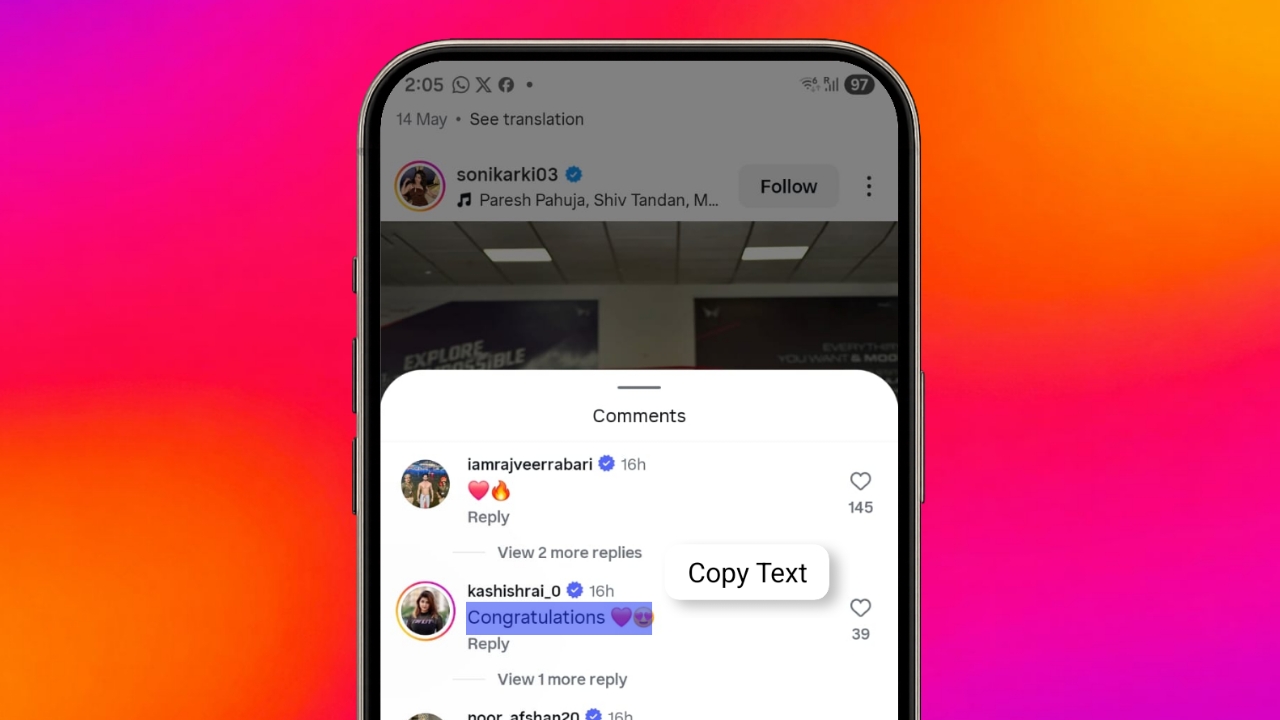

Copying Instagram Comments is useful for many users as some comments contain helpful information or funny messages.
Instagram does not offer direct comment copying. However, several simple methods can help users copy comments safely and quickly.
Copy Instagram Comments on Android Devices
Instagram blocks direct comment copying inside its app. Android users must use alternative methods instead.
One popular method uses screenshots and text recognition. Most Android phones support this process easily.
First, open Instagram and locate the needed comment. Make sure the entire comment appears clearly. Take a screenshot of the selected comment. Save the screenshot on your device.
Now open Google Photos on your phone. Find the screenshot you just captured. Tap the Lens option available below. Google Lens will scan the screenshot automatically.
The tool detects text from the image. Select the Instagram comment carefully afterward. Tap the Copy option when selection finishes. The text will enter your clipboard instantly.
Steps Using Google Photos and Lens
- Open Instagram and locate the comment.
- Take a screenshot of the comment.
- Open Google Photos on your device.
- Select the screenshot from your gallery.
- Tap Lens or Copy Text option.
- Highlight the desired comment text.
- Press Copy to save the text.
Use Google Assistant Search Screen Feature
Some Android devices support screen recognition tools. These features make copying much easier.
Open Instagram and display the comment clearly. Keep the comment visible on screen. Launch Google Assistant on your device. Choose the Search Screen option available.
Some phones offer Circle to Search instead. Both features work in similar ways. The tool scans everything visible onscreen. It identifies selectable text automatically.
Tap the comment text after scanning finishes. Select the required words carefully. Press Copy and save the comment instantly. You never need another application here.
Benefits of Android Text Recognition
Android text recognition saves valuable time. Users avoid typing comments manually. The process works on most modern devices. It requires only built-in Google tools.
Many users prefer this convenient solution. The copied text remains easy to share.
On iPhone Devices
Instagram restrictions also affect iPhone users. Direct comment copying remains unavailable there. Fortunately, Apple’s Photos app provides assistance. Built-in text detection works very effectively.
Begin by opening Instagram normally. Find the comment you wish to copy. Capture a screenshot of that comment. Most iPhones support quick screenshot shortcuts.
Press Power and Volume Down together. The screenshot saves automatically afterward. Open the Photos application on your device. Locate the saved screenshot carefully.
Touch and hold the comment text. The text becomes selectable after recognition. Adjust the selection handles if necessary. Choose the complete comment properly.
Tap Copy from the available options. The text enters your clipboard immediately.
Steps for iPhone Users
- Open Instagram and find the comment.
- Capture a screenshot of the comment.
- Open Photos and select a screenshot.
- Press and hold detected text.
- Select the required comment text.
- Tap Copy from available options.
Using Google Lens on iPhone
Some iPhone users prefer Google Lens. The process remains very similar. Open Google Lens after taking screenshots. Import the saved screenshot there.
Allow Lens to scan the image. It identifies text within seconds. Select the desired Instagram comment afterward. Tap Copy when selection completes.
Why iPhone Methods Work Well
Apple’s text recognition technology performs reliably. Most comments remain easy to capture.
Users need no special applications installed. Built-in tools handle most requirements successfully.
On Pixel and Desktop
Copy Instagram Comments on Pixel Phones
Google Pixel phones offer an additional feature. Users can skip screenshot capturing completely. Open Instagram and display the target comment. Keep the comment fully visible.
Swipe upward and hold briefly. This opens the Recent Apps screen. Pixel devices analyze visible screen content. Text becomes selectable automatically afterward.
Press and hold the comment text. Highlight the words you need copied. Tap Copy when selection finishes successfully. The comment saves instantly.
Pixel Phone Steps
- Open Instagram and display comments.
- Open the Recent Apps screen.
- Touch and hold detected text.
- Select required words carefully.
- Press Copy to finish the process.
Why Pixel Users Benefit
Pixel devices remove extra screenshot steps. This makes the process much faster.
Users enjoy quick text recognition features. The method feels smooth and convenient.
On Desktop Browsers
Desktop browsers provide the easiest solution. Instagram allows text selection on computers. Open Instagram using your preferred browser. Sign into your account normally.
Navigate to the desired Instagram post. Locate the comment requiring copying. Click and drag over the comment. The text becomes highlighted immediately.
Right-click and choose the Copy option. Keyboard shortcuts work equally well. Windows users can press Ctrl plus C. Mac users can press Command plus C.
Desktop Copying Steps
- Open Instagram through a browser.
- Sign into your account.
- Open the required post.
- Highlight the desired comment text.
- Use Copy from menu options.
- Or use keyboard shortcuts.
Desktop Mode on Mobile Browsers
Mobile users can also access desktop mode. This method works on Android and iPhone. Copy the post or reel link first. Paste it into your browser.
Enable Desktop Mode from browser settings. The website loads desktop layout afterward. Find the desired Instagram comment carefully. Zoom in if selection becomes difficult.
Highlight the comment text using fingers. Tap Copy after completing selection.
Why Desktop Methods Are Better
Desktop copying offers greater accuracy overall. Text selection works directly without scanning. Special characters remain properly preserved. Emojis also copy more accurately.
Screenshot recognition may miss some details. Desktop browsers reduce these common issues.
Important Questions About Comment Copying
Is Copying Instagram Comments Safe?
Yes, these methods remain completely safe. They use normal device functions only. Screenshots and text recognition pose risks. Users regularly rely on these features.
Can Private Account Comments Be Copied?
Private account comments follow permission rules. Users need access before viewing comments. If you can view comments legally, copying remains possible using these methods.
Can Instagram Story Text Be Copied?
Instagram Stories work differently from comments. Story text cannot be copied similarly. Current screenshot methods do not support. Users must type Story text manually.
The Bottom Corner
Android, iPhone, Pixel, and desktop users have several reliable options Copying Instagram Comments.
Screenshots, text recognition tools, and desktop browsers provide effective solutions for saving important comments quickly.