
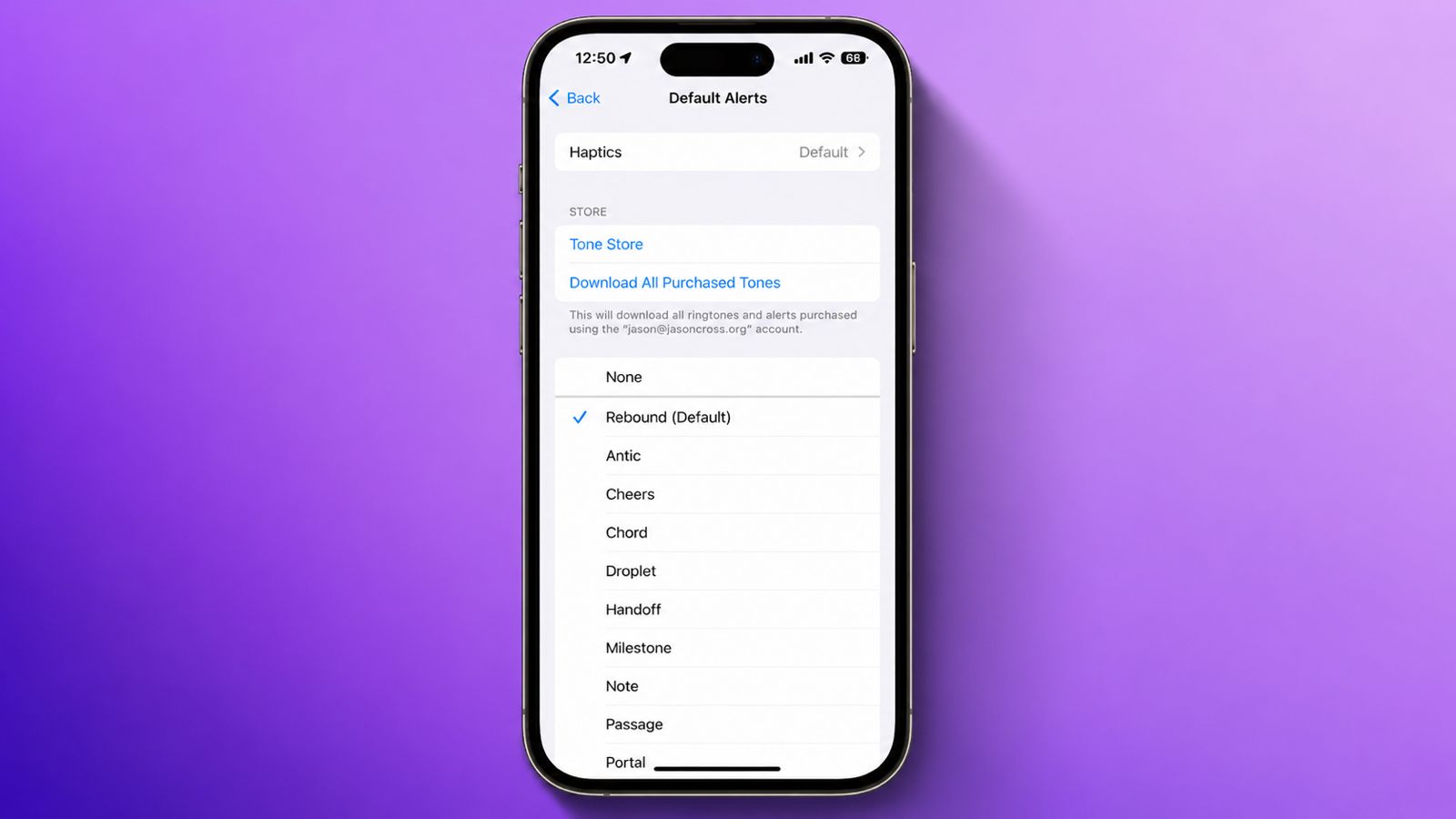

Change iPhone Default Notification Sound in iOS 17 as it was added through iOS 17.2.
Users can now choose different sounds, restore older alerts, and customize vibration settings for a better notification experience.
Shift iPhone’s Default Notification Sound in iOS 17
Apple introduced several changes with iOS 17. One noticeable change affected notification sounds. The company replaced the older default notification sound. Many users quickly noticed this difference.
Before iOS 17, Apple used Tri-Tone notifications. This sound remained popular for many years. Users easily recognized incoming notifications everywhere.
Apple later introduced a newer sound called Rebound. This sound became the new default alert. Rebound sounds shorter and more compact.
Many users shared negative feedback afterward. Some users felt the sound was quieter. Others found notifications harder to hear. Many preferred the older Tri-Tone sound.
Initially, users could not change this setting. Apple offered ringtone customization options already. Text tones could also be customized easily. However, default notification sounds remained unchanged.
Things changed with the iOS 17.2 update. Apple finally added notification sound customization. Users gained more control over notifications.
Check for the Latest Software Update
Before changing notification settings, update your device.
Follow these simple steps:
- Open Settings.
- Tap General.
- Select Software Update.
- Check for available updates.
- Install the latest version available.
Updating ensures all notification options appear. Older software versions may lack these settings.
Steps to Change Notification Sounds
Changing the default notification sound remains simple.
Follow these instructions carefully:
- Open the Settings application.
- Tap Sounds & Haptics.
- Select Default Alerts.
- Browse available sound options.
- Tap any sound for preview.
- Listen to the sample sound.
- Select your preferred alert tone.
- Exit Settings after selection.
The selected sound saves automatically afterward. Future notifications will use this sound.
Available Sound Choices
Apple provides several built-in sound options. Users can test sounds before choosing.
You can select:
- Built-in notification sounds.
- Purchased tones from Apple.
- Additional downloaded tones.
- No sound option.
Choosing no sound disables notification audio. Notifications can still appear normally.
What Happens After Changing Sounds
The selected sound becomes your default alert. Many notifications will follow this setting.
When supported apps send notifications, the chosen sound plays automatically. This creates a more personal experience.
Users can return and change sounds anytime. There are no restrictions on modifications.
Change Back to Tri-Tone
Many users missed the older notification sound. Apple understood these concerns quickly.
Tri-Tone served as Apple’s default notification sound. Millions of users became familiar with it. The sound remained clear and recognizable.
When Rebound replaced Tri-Tone, many users complained. They preferred the previous notification experience.
Fortunately, Apple added a solution later. Users can now restore Tri-Tone easily.
Steps to Restore the Old Notification Sound
Follow these simple instructions:
- Open Settings.
- Tap Sounds & Haptics.
- Select Default Alerts.
- Locate the Tri-Tone option.
- Tap Tri-Tone to activate it.
The setting changes immediately afterward. Future notifications will use Tri-Tone again.
Why Users Prefer Tri-Tone
Many users find Tri-Tone easier hearing. The sound feels familiar and reliable.
Common reasons include:
- Better sound recognition.
- Louder notification experience.
- Familiar alert pattern.
- Long-time user preference.
Users upgrading from iOS 16 often prefer Tri-Tone. It restores the older notification experience.
Understanding Rebound and Tri-Tone
Rebound remains the iOS 17 default sound. Apple selected it for newer devices.
Tri-Tone remains available through customization. Users can freely switch between both sounds.
Testing both sounds helps comparison. Users can choose whichever sounds better.
Customize Haptics
Notification sounds are only one option. Apple also allows haptic customization.
Haptics refer to vibration feedback patterns. Vibrations accompany notifications and alerts.
Many users depend on vibration alerts. This feature helps in quiet environments.
What Are Haptic Notifications?
Haptics create physical vibration feedback. Users feel notifications through vibrations.
Benefits include:
- Better notification awareness.
- Silent alert support.
- Improved accessibility features.
- Extra notification confirmation.
These vibrations work alongside notification sounds.
Steps to Change Default Haptics
Apple makes haptic customization very simple.
Follow these instructions:
- Open Settings.
- Tap Sounds & Haptics.
- Select Default Alerts.
- Tap Haptics.
- Choose a vibration pattern.
- Feel the preview vibration.
- Select your preferred option.
- Exit Settings afterward.
Your choice becomes active immediately.
Different Haptic Options Available
Apple offers multiple vibration styles. Each option feels slightly different.
Users can choose:
- Standard vibrations.
- Stronger vibration patterns.
- Softer vibration styles.
- Alternative feedback patterns.
Every option provides unique notification feedback.
Turn Off Haptic Feedback
Some users prefer no vibration alerts. Apple allows complete haptic deactivation.
Users can disable vibrations completely. Notifications continue arriving normally. This option helps users wanting quieter experiences.
How Sound and Haptics Work Together
Notification sounds and haptics operate together. They create a complete alert experience.
Users can mix different combinations easily. For example, choose Tri-Tone with custom vibrations.
This flexibility improves personalization significantly.
Apps That Use Default Notification Settings
Many applications follow default notification alerts.
Examples may include:
- Social networking applications.
- General communication applications.
- Various utility applications.
These apps use selected default sounds.
Apps Not Affected by Changes
Some applications use custom notification sounds. These apps ignore default alert settings.
Custom app sounds remain unchanged afterward. Their unique notification tones continue working.
Custom vibration patterns also remain unchanged. Default alert changes cannot replace them.
Special Case for Messages Notifications
Apple Messages uses separate sound controls. It does not rely completely on Default Alerts.
Users must change Text Tone settings separately. This setting controls message notifications.
Other Sounds You Can Customize
Apple offers many additional sound settings.
Users can customize:
- Phone ringtone sounds.
- Text message tones.
- Voicemail alerts.
- New mail notifications.
- Sent mail notifications.
- Calendar alerts.
- Reminder notifications.
Each category supports individual customization. Different sounds can identify different alerts.
This setup improves organization significantly. Users quickly recognize notification types.
Why Notification Customization Matters
Personalized notifications improve everyday device usage. Users gain greater control over alerts.
Benefits include:
- Better notification recognition.
- Easier sound identification.
- Improved accessibility support.
- Greater personalization options.
- Better overall user experience.
The iOS 17.2 update addressed user concerns. Apple finally delivered requested customization options.
As We Conclude
Users can Change iPhone Default Notification Sound in iOS 17, restore Tri-Tone, customize haptics, and create personalized notifications that better match daily preferences and needs.