
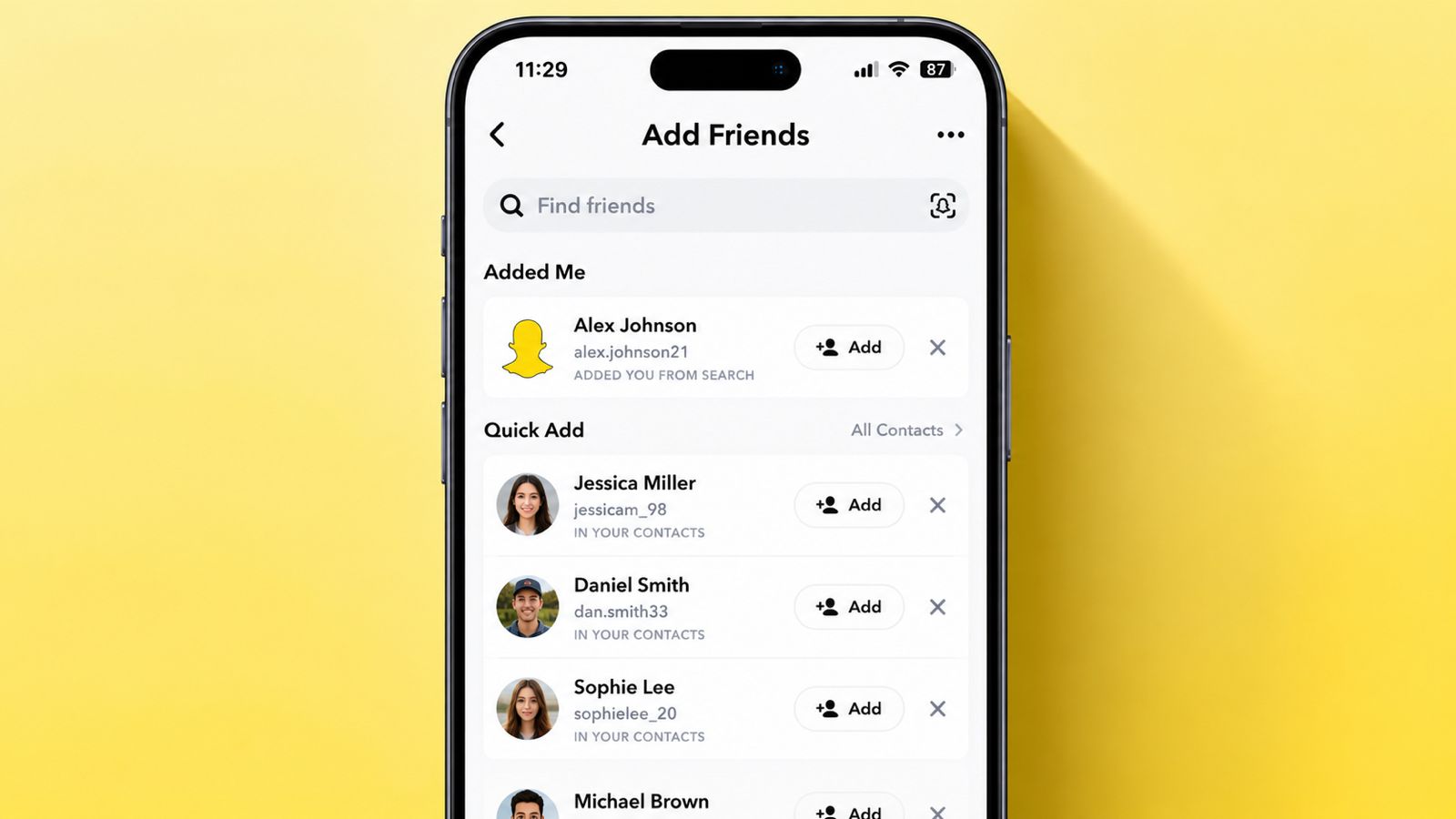

Add People on Snapchat using several simple methods. Snapchat makes connecting with friends quick and easy.
You can search usernames, use contacts, scan Snapcodes, and explore public profiles.
Add People on Snapchat Using Search and Quick Add
Snapchat offers multiple search tools for finding users. These tools help connect with friends quickly.
Search Using a Username
Searching usernames remains one popular Snapchat method. This option works when you know usernames.
Follow these simple steps:
- Open Snapchat on your device.
- Tap the search icon above.
- Enter the person’s username carefully.
- Review matching profiles displayed.
- Tap Add beside the correct profile.
Sometimes only part remains known. Partial searches may still show matching accounts. Many users can share similar username characters.
Check profiles carefully before sending requests. You can also open profile pictures directly. Tap Add Friend from the profile page. Your own username appears inside your profile.
Search Using Display Names
Display names can help locate users quickly. Follow these steps:
- Open Snapchat application.
- Tap the search button.
- Enter the display name.
- Browse matching profile results.
- Tap Add beside the profile.
When successful, Snapchat displays the Added status.
Search Using Phone Numbers
Phone numbers can also help find users. Follow these steps:
- Open Snapchat search.
- Enter the phone number.
- Check available matching profiles.
- Tap Add beside the account.
This method works when numbers remain connected.
Use Quick Add Recommendations
Quick Add suggests people you may know. Snapchat creates recommendations using several signals. Recommendations may depend on:
- Mutual Snapchat friends.
- Existing subscriptions.
- Shared contacts.
- Other Snapchat factors.
Quick Add appears in different areas. These include:
- Chat screen.
- Search screen.
- Add the Friends section.
Tap +Add for sending requests immediately. Tap X for removing unwanted suggestions.
Add Friends Through Story Mentions
Stories sometimes mention other Snapchat users. This creates another easy connection method. Follow these steps:
- Open the story.
- Swipe upward carefully.
- View mentioned profile details.
- Tap +Add beside the profile.
This process takes only a few seconds.
Add Using Contacts
Your phone contacts provide another useful option. Snapchat can match saved information automatically.
Allow Contact Access
When launching Snapchat initially, permission appears. Snapchat requests access to device contacts. If permission was skipped earlier, follow steps.
- Open Snapchat application.
- Tap your profile icon.
- Choose the Add Friends option.
- Select Find Friends.
- Tap Go to Settings.
- Enable Contacts permission.
Return to Snapchat after enabling permissions.
Find Friends Through Contacts
Once contacts become available, Snapchat starts matching. Follow these steps:
- Open Find Friends screen.
- Browse available contact matches.
- Tap +Add beside users.
- Send friend requests instantly.
This feature uses stored phone information. It can also use saved email addresses.
Why Contacts Sometimes Do Not Appear
Sometimes expected contacts remain unavailable. Possible reasons include:
- User disabled discoverability settings.
- The user removed phone information.
- The user removed email information.
- Snapchat lacks matching details.
In such cases, another method may help.
Add Using Snapcodes
Snapcodes make friend requests very simple. Every Snapchat account receives a unique code. These codes work similarly to QR codes.
Scan a Snapcode Nearby
This method works when friends stand nearby. Follow these steps:
- Ask friends to open Snapchat.
- Open their profile page.
- Display their Snapcode image.
- Open your Snapchat camera.
- Point camera toward Snapcode.
- Press and hold the code.
- Wait for identification.
- Tap Add Friend.
The request is sent almost immediately.
Use a Saved Snapcode Image
Friends may share Snapcodes remotely. Snapcodes can arrive through:
- Email messages.
- SMS messages.
- WhatsApp messages.
- Other messaging applications.
Follow these steps:
- Save the Snapcode image.
- Open Snapchat application.
- Tap Add Friends icon.
- Select Snapcode scanner.
- Choose a saved image.
- Wait for detection.
- Tap Add Friend.
Find Your Own Snapcode
Sharing your Snapcode remains very easy. Follow these steps:
- Open the Snapchat profile page.
- Tap the yellow image.
- Display your Snapcode.
- Share it with others.
Friends can scan it instantly.
Add Through Maps and Profiles
Snapchat includes additional discovery features. These features help users find creators.
Use Snap Map
Snap Map helps discover nearby content. This feature works with public profiles only. Follow these steps:
- Open Snap Map.
- Browse available locations.
- Tap interesting hotspots.
- Open posted Snaps.
- Select View Creator.
- Review profile information.
- Tap Subscribe for updates.
Subscriptions differ from friendships. However, usernames remain visible there. Use usernames for sending friend requests later.
Add Friends Through Public Profiles
Public profiles provide another useful option. Follow these steps:
- Open public stories.
- Tap View Profile.
- Review profile details.
- Select Add Friend.
The other person may accept requests later.
Common Problems When Adding Friends
Sometimes Snapchat prevents friend requests temporarily. Several possible reasons may explain issues.
The Account Was Deleted
Recently deleted accounts may still appear briefly. Users might seem available for interaction. Eventually those usernames disappear completely.
The User Blocked You
Blocked users cannot send friend requests. Snapchat prevents communication after blocking actions.
Friend Limit Reached
Snapchat allows many friendships overall. However, limits still exist for every account. Removing inactive friends may create space.
Too Many Requests Sent
Large request numbers trigger temporary restrictions. Wait some time before trying again.
Why Snapchat Shows Forbidden
Forbidden messages appear for several reasons. These reasons include:
- Blocked account status.
- Deleted account status.
- Maximum friend limits.
- Excessive request activity.
Most temporary issues disappear with patience.
Privacy, Requests, and Friend Management
Understanding privacy settings helps manage friendships better.
What Happens After Sending Requests
Friend requests appear inside Add Friends. Recipients can choose:
- Accept requests.
- Ignore requests.
Once accepted, both users become friends.
Can Users See Searches
Snapchat protects search activity carefully. Users cannot see:
- Username searches.
- Profile visits.
- Search attempts.
However, story interactions remain visible. Story views create notifications automatically. Story screenshots may also create notifications.
Remove Yourself From Quick Add
Random users may discover profiles through Quick Add. To reduce visibility:
- Open profile page.
- Open Settings menu.
- Find See Me in Quick Add.
- Disable the option.
This reduces future recommendations significantly.
Remove a Friend
Removing friends remains very simple. Follow these steps:
- Open Chats section.
- Press and hold name.
- Select Manage Friendship.
- Tap Remove Friend.
- Confirm removal choice.
Future friendships require new requests.
Block and Unblock Users
Blocking automatically removes friendships immediately. Blocking also removes:
- Messages.
- Stories.
- Friend connections.
To unblock users:
- Open profile page.
- Open Settings menu.
- Select Privacy Controls.
- Open Blocked Users.
- Tap X beside username.
- Confirm unblocking action.
Unblocking does not restore friendships automatically. New requests remain necessary afterward.
The Bottom Corner
You can Add People on Snapchat through usernames, contacts, Snapcodes, maps, and public profiles. Every method offers simple steps for connecting.
Understanding requests, privacy settings, and common problems helps users enjoy smoother Snapchat experiences while building stronger friend networks.